
|
|
|
| |
|
Virtually all the drawing operations you will require are
achievable using methods such as FrameRect,
FillRect,
AddLine and
AddArc.
However, occasionally, you may require more sophisticated
control over your drawing operations. In these situations, you need
direct access to the PDF Content Stream.
|
|
|
|
| |
|
Page content is defined by the page Content Stream. The Content
Stream is a sequence of descriptions of graphics objects to be
placed on the page. ABCpdf allows you to create or modify these
content streams allowing you access to the full power of PDF
drawing operators.
It was intentionally decided not to encapsulate this type of
drawing within an API. Ultimately, all Content Stream creation
involves simple string manipulation operations. We felt that by
distancing you from the Content Stream, we would be limiting you
and offering little in the way of advantage. It is trivial to
generate your own Content Stream API if this is what you want.
To insert a content stream, you need to insert a layer using an
operation such as FrameRect, FillRect or AddLine and then replace
the default content stream with your own. See the examples below
for details.
Here, we describe how to perform common tasks. We do not cover
the entire range of possible operators and functions. For full
details, you should see the Adobe PDF Specification.
|
|
|
|
| |
| |
A path object is a shape made up of straight lines, rectangles
and Bézier curves. It may intersect itself and may have
disconnected sections and holes. After the path has been defined,
it may be painted, filled, used for clipping or a combination of
these operations.
Each path consists of one or more subpaths. Each subpath
consists of one or more connected segments. Subpaths may be open or
closed. When a subpath is closed, the start of the path is
connected to the end.
All paths are located in the standard Adobe PDF coordinate
space. The following is a list of standard path construction
operators.
| Name
|
Parameters
|
Operator
|
Description
|
| Move |
x y |
m |
Begin a new subpath by moving to the coordinates
specified. |
| Line |
x y |
l |
Add a straight line from the current location to the
coordinates specified. |
| Rect |
x y w h |
re |
Add a rectangular subpath with the lower left corner at (x, y)
with width w and height h. |
| Bézier |
x1 y1 x2 y2 x3 y3 |
c |
Add a Bézier curve from the current location to the coordinates
specified (x3, y3) using the other coordinates (x1, y1) and (x2,
y2) as control points. |
| Close |
|
h |
Close the current subpath joining the start to the end. |
| Stroke |
|
S |
Paint a line along the current path using the current stroke
color. |
| Fill |
|
f |
Fill the current path using the current fill color.
This fill method uses the nonzero winding number rule. There are
other PDF operators to allow the use of the even-odd rule but these
are not generally useful.
|
| Clip |
|
W n |
Intersect the path with the current clipping path to establish a
new clipping path.
This actually comprises two operators rather than one, but they
are almost invariably used in this combination.
|
|
|
|
|
| |
| |
The graphics state defines the parameters within which the PDF
operators work. For example, the graphics state defines the current
line width, which will be used whenever a line is drawn. It also
defines the current non-stroking color, which will be used whenever
a path is filled.
You can push copies of the graphics state onto a stack and then
restore them later. This can be very useful for doing and undoing
graphics state operations.
| Name
|
Parameters
|
Operator
|
Description
|
| Save State |
|
q |
Push a copy of the current graphics state onto the stack. |
| Restore State |
|
Q |
Restore the current graphics state from the top of the
stack. |
| Line Width |
v |
w |
Set the width to be used when stroking lines. |
| Set Gray |
w |
G |
Set the gray level to use for stroking operations.The component
ranges between 0.0 and 1.0 (black and white respectively). |
| Set Gray |
w |
g |
The same as G but for non-stroking operations. |
| Set RGB |
r g b |
RG |
Set the RGB color to use for stroking operations. Each
component ranges between 0.0 and 1.0. |
| Set RGB |
r g b |
rg |
The same as RG but for non-stroking operations. |
| Set CMYK |
c m y k |
K |
Set the CMYK color to use for stroking operations. Each
component ranges between 0.0 and 1.0. |
| Set CMYK |
c m y k |
k |
The same as K but for non-stroking operations. |
| Transform |
a b c d e f |
cm |
Concatenate matrix with the current transform matrix. Common
transforms include:
- Translation: A matrix of the form [1 0 0 1 tx ty] shifts the
coordinate system by tx horizontally and ty vertically.
- Scaling: A matrix of the form [sx 0 0 sy 0 0] scales the
coordinate system by a factor of sx horizontally and sy vertically
pinned at the origin.
- Rotation: A matrix of the form [cos(ra) sin(ra) -sin(ra)
cos(ra) 0 0] rotates the coordinate system by the angle ra
anti-clockwise around the origin.
- Skew: A matrix of the form [1 tan(ra) tan(ra) 1 0 0] skews the
x and y axes by the angle ra.
|
| Line Cap |
v |
J |
The line cap for the ends of any lines to be stroked. Possible
values are:
- Butt. The stroke is square at the end of the path and
does not project beyond the end of the path.
- Round. A semicircle is added at the end of the path
projecting beyond the endpoints.
- Projecting Square. The stroke is square but projects
a distance of half the line width beyond the ends of the path.
|
| Line Join |
v |
j |
The line join for the shape of joints between connected segments
of a path. Possible values are:
- Miter. The outer edges for the two segments are
extended until they meet. This is the same way that wooden segments
are joined to make a picture frame. If the segments meet at an
overly steep angle, a bevel join is used, instead. The precise
cut-off point is called the Miter Limit (see below).
- Round. A pie slice is added to the junction of the
two segments to produce a rounded corner.
- Bevel. The two segments are finished with butt caps
and any notch between the two is filled in.
|
| Miter Limit |
v |
M |
The maximum length of mitered line joins for paths.
The miter limit is expressed in terms of the ratio of the
thickness of the line to the thickness of the join.
For example, a value of 1.5 will allow the width of the line at
the join to be up to one and a half times the thickness of the
width of an individual line segment.
|
| Line Dash |
a p |
d |
The dash pattern to use for stroked lines. The parameters
include a - an array for the pattern and p - the phase of the
dash. |
|
|
|
|
| |
| |
Paths can be stroked (drawn) using the current stroking
color.
For example, you might wish to draw a star.
gr = ""

gr = gr & "q " ' save state

gr = gr & "30 w " ' line width

gr = gr & "2 j " ' line join

gr = gr & "124 158 m " ' move

gr = gr & "300 700 l " ' line

gr = gr & "476 158 l " ' line

gr = gr & "15 493 l " ' line

gr = gr & "585 493 l " ' line

gr = gr & "h " ' close

gr = gr & "S " ' stroke

gr = gr & "Q" ' restore state


Set theDoc = Server.CreateObject("ABCpdf14.Doc")

theDoc.SetInfo theDoc.FrameRect(), "stream", gr

theDoc.Save "c:\mypdfs\adv_star_draw.pdf"
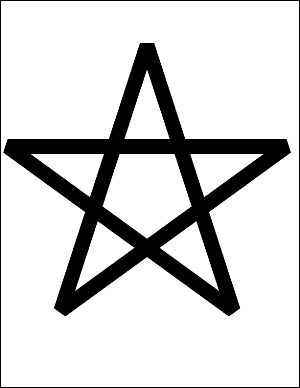
adv_star_draw.pdf
|
|
|
|
| |
| |
Paths can be filled with the current non-stroking color.
For example, you might wish to construct a filled star.
gr = ""

gr = gr & "q " ' save state

gr = gr & "124 158 m " ' move

gr = gr & "300 700 l " ' line

gr = gr & "476 158 l " ' line

gr = gr & "15 493 l " ' line

gr = gr & "585 493 l " ' line

gr = gr & "h " ' close

gr = gr & "f " ' fill

gr = gr & "Q" ' restore state


Set theDoc = Server.CreateObject("ABCpdf14.Doc")

theDoc.SetInfo theDoc.FrameRect(), "stream", gr

theDoc.Save "c:\mypdfs\adv_star_fill.pdf"
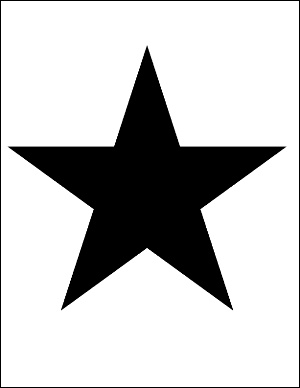
adv_star_fill.pdf
|
|
|
|
| |
| |
Paths can contain curved segments.
Curved segments are specified as cubic Bézier curves. These
provide a flexible and practical way to draw curves and curved
paths.
Each segment is defined by four points. The first point and the
final point define the ends of the segment. The second and third
points define the control points. The line is pulled towards the
first control point as it leaves the start, and it is pulled
towards the second control point as it arrives at the end.
The easiest way to illustrate this is with an example. Note that
in this example the Bézier curve takes relatively little code to
define. Most of the code is related to illustrating how the control
points affect the shape of the curve.
gr = ""

gr = gr & "q " ' save state

gr = gr & "30 w " ' line width

gr = gr & "100 100 m " ' move

gr = gr & "200 700 400 600 500 300 c " ' Bezier

gr = gr & "S " ' stroke

gr = gr & "Q" ' restore state


Set theDoc = Server.CreateObject("ABCpdf14.Doc")

' annotate Bezier curve in red

theDoc.Color = "255 0 0"

theDoc.Width = 20

theDoc.FontSize = 30

theDoc.Pos = "100 100"

theDoc.AddText "p0 (current point)"

theDoc.Pos = "200 700"

theDoc.Pos.Y = theDoc.Pos.Y + theDoc.FontSize

theDoc.AddText "p1 (x1, y1)"

theDoc.Pos = "400 600"

theDoc.Pos.Y = theDoc.Pos.Y + theDoc.FontSize

theDoc.AddText "p2 (x2, y2)"

theDoc.Pos = "500 300"

theDoc.Pos.X = theDoc.Pos.X - theDoc.FontSize

theDoc.AddText "p3 (x3, y3)"

theDoc.AddLine 100, 100, 200, 700

theDoc.AddLine 400, 600, 500, 300

' add Bezier curve

theDoc.SetInfo theDoc.FrameRect(), "stream", gr

theDoc.Save "c:\mypdfs\adv_bezier.pdf"
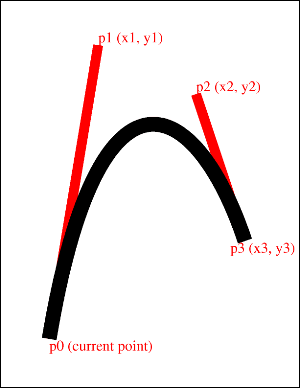
adv_bezier.pdf
|
|
|
|
| |
| |
You can use a path to define a clipping area.
The graphics state holds a clipping path that restricts the
areas on the page which can be painted on. Marks falling within the
clipping area will be displayed, and those falling outside will
not.
The default clipping path is the entire page. You can intersect
the current clipping path with a new path using the clipping path
operators.
You cannot expand a clipping path. Instead, you must save the
graphics state before applying your clipping path and then restore
the graphics state after you have finished using it.
Here we fill a rectangle clipped by our star shape.
gr = ""

gr = gr & "q " ' save state

gr = gr & "124 158 m " ' move

gr = gr & "300 700 l " ' line

gr = gr & "476 158 l " ' line

gr = gr & "15 493 l " ' line

gr = gr & "585 493 l " ' line

gr = gr & "W n " ' clip

gr = gr & "100 200 400 400 re " ' rect

gr = gr & "f " ' fill

gr = gr & "Q" ' restore state


Set theDoc = Server.CreateObject("ABCpdf14.Doc")

theDoc.SetInfo theDoc.FrameRect(), "stream", gr

theDoc.Save "c:\mypdfs\adv_star_clip.pdf"
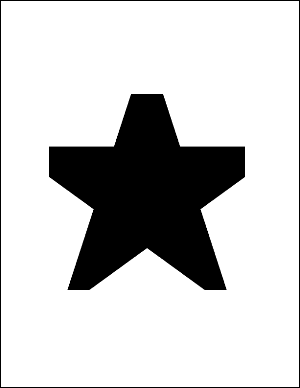
adv_star_clip.pdf
|
|
|
|
| |
| |
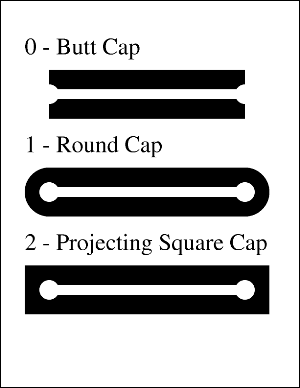
You can define the way that the end points of your paths are
capped.
The following options are available:
Butt. The stroke is square at the end of the path and does not
project beyond the end of the path.
Round. A semicircle is added at the end of the path projecting
beyond the endpoints.
Projecting Square. The stroke is square but projects a distance
of half the line width beyond the ends of the path.
This example shows how different line caps are drawn. Note that
the line cap themselves take relatively little code to define. Most
of the code is related to annotating the drawing so that you can
see how the caps relate to the end points.
gr = ""

gr = gr & "100 w " ' line width

gr = gr & "0 J " ' butt cap

gr = gr & "100 600 m " ' move

gr = gr & "500 600 l " ' line

gr = gr & "S " ' stroke

gr = gr & "1 J " ' round cap

gr = gr & "100 400 m " ' move

gr = gr & "500 400 l " ' line

gr = gr & "S " ' stroke

gr = gr & "2 J " ' square cap

gr = gr & "100 200 m " ' move

gr = gr & "500 200 l " ' line

gr = gr & "S " ' stroke


Set theDoc = Server.CreateObject("ABCpdf14.Doc")

' add capped lines

theDoc.SetInfo theDoc.FrameRect(), "stream", gr

' annotate capped lines

theDoc.FontSize = 48

theDoc.Pos = "50 720"

theDoc.AddText "0 - Butt Cap"

theDoc.Pos = "50 520"

theDoc.AddText "1 - Round Cap"

theDoc.Pos = "50 320"

theDoc.AddText "2 - Projecting Square Cap"

theDoc.Width = 20

theDoc.Color = "255 255 255"

theDoc.AddLine 100, 200, 500, 200

theDoc.Rect = "80 180 120 220"

theDoc.FillRect 20, 20

theDoc.Rect = "480 180 520 220"

theDoc.FillRect 20, 20

theDoc.AddLine 100, 400, 500, 400

theDoc.Rect = "80 380 120 420"

theDoc.FillRect 20, 20

theDoc.Rect = "480 380 520 420"

theDoc.FillRect 20, 20

theDoc.AddLine 100, 600, 500, 600

theDoc.Rect = "80 580 120 620"

theDoc.FillRect 20, 20

theDoc.Rect = "480 580 520 620"

theDoc.FillRect 20, 20

theDoc.Save "c:\mypdfs\adv_linecap.pdf"
adv_linecap.pdf
|
|
|
|
| |
| |
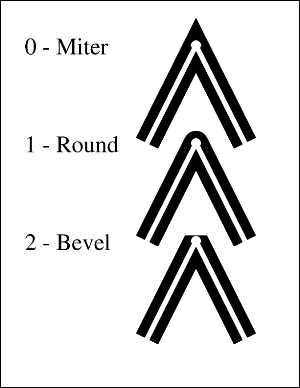
You can define the way that your line segments are joined.
The following options are available:
Miter. The outer edges for the two segments are extended until
they meet. This is the same way that wooden segments are joined to
make a picture frame. If the segments meet at an overly steep
angle, a bevel join is used, instead. The precise cut-off point is
called the Miter Limit.
Round. A pie slice is added to the junction of the two segments
to produce a rounded corner.
Bevel. The two segments are finished with butt caps, and any
notch between the two is filled in.
This example shows how different line joins are drawn. Note that
the line joins themselves take relatively little code to define.
Most of the code is related to annotating the drawing.
gr = ""

gr = gr & "50 w " ' line width

gr = gr & "0 j " ' miter join

gr = gr & "300 500 m " ' move

gr = gr & "400 700 l " ' line

gr = gr & "500 500 l " ' line

gr = gr & "S " ' stroke

gr = gr & "1 j " ' round join

gr = gr & "300 300 m " ' move

gr = gr & "400 500 l " ' line

gr = gr & "500 300 l " ' line

gr = gr & "S " ' stroke

gr = gr & "2 j " ' bevel join

gr = gr & "300 100 m " ' move

gr = gr & "400 300 l " ' line

gr = gr & "500 100 l " ' line

gr = gr & "S " ' stroke


Set theDoc = Server.CreateObject("ABCpdf14.Doc")

' add capped lines

theDoc.SetInfo theDoc.FrameRect(), "stream", gr

' annotate capped lines

theDoc.FontSize = 48

theDoc.Pos = "50 720"

theDoc.AddText "0 - Miter"

theDoc.Pos = "50 520"

theDoc.AddText "1 - Round "

theDoc.Pos = "50 320"

theDoc.AddText "2 - Bevel"

theDoc.Width = 10

theDoc.Color = "255 255 255"

theDoc.AddLine 300, 500, 400, 700

theDoc.AddLine 400, 700, 500, 500

theDoc.Rect = "390 690 410 710"

theDoc.FillRect 10, 10

theDoc.AddLine 300, 300, 400, 500

theDoc.AddLine 400, 500, 500, 300

theDoc.Rect = "390 490 410 510"

theDoc.FillRect 10, 10

theDoc.AddLine 300, 100, 400, 300

theDoc.AddLine 400, 300, 500, 100

theDoc.Rect = "390 290 410 310"

theDoc.FillRect 10, 10

theDoc.Save "c:\mypdfs\adv_linejoin.pdf"
adv_linejoin.pdf
|
|
|
|
| |
| |
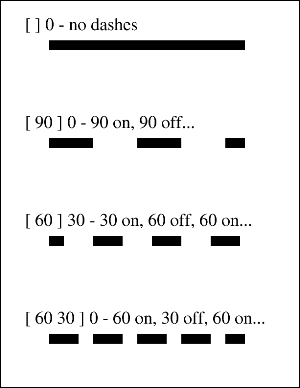
You can define dashed lines.
The dash pattern is specified by a dash array and a dash phase.
The dash array specifies the length of dashes and gaps. The dash
phase specifies the distance into the array at which the line
dashes should start.
When the lengths in the array are exhausted, the dash pattern
starts again at the beginning. You can use an empty array and zero
phase to specify a solid line
Dashed lines can be applied to any kind of path including
straight lines and curves. Each subpath in a path is treated
separately - the dash phase starts at the beginning again.
This example shows how different line dash patterns are
drawn.
gr = ""

gr = gr & "q " ' save state

gr = gr & "20 w " ' line width

gr = gr & "[ ] 0 d " ' dash pattern

gr = gr & "100 700 m " ' move

gr = gr & "500 700 l " ' line

gr = gr & "S " ' stroke

gr = gr & "[ 90 ] 0 d " ' dash pattern

gr = gr & "100 500 m " ' move

gr = gr & "500 500 l " ' line

gr = gr & "S " ' stroke

gr = gr & "[ 60 ] 30 d " ' dash pattern

gr = gr & "100 300 m " ' move

gr = gr & "500 300 l " ' line

gr = gr & "S " ' stroke

gr = gr & "[ 60 30 ] 0 d " ' dash pattern

gr = gr & "100 100 m " ' move

gr = gr & "500 100 l " ' line

gr = gr & "S " ' stroke

gr = gr & "Q" ' restore state


Set theDoc = Server.CreateObject("ABCpdf14.Doc")

' annotate dashed lines

theDoc.FontSize = 36

theDoc.Pos = "50 760"

theDoc.AddText "[ ] 0 - no dashes"

theDoc.Pos = "50 560"

theDoc.AddText "[ 90 ] 0 - 90 on, 90 off..."

theDoc.Pos = "50 360"

theDoc.AddText "[ 60 ] 30 - 30 on, 60 off, 60 on..."

theDoc.Pos = "50 160"

theDoc.AddText "[ 60 30 ] 0 - 60 on, 30 off, 60 on..."

' add dashed lines

theDoc.SetInfo theDoc.FrameRect(), "stream", gr

theDoc.Save "c:\mypdfs\adv_dashes.pdf"
adv_dashes.pdf
|
|
|
|
| |
| |
You can define transforms which affect the world space.
A transform allows you to translate, scale, rotate, or skew
objects. Multiple transforms can be concatenated so that you can
perform a combination of these operations.
A transform is defined by six numbers. Common transforms
include:
Translation: A matrix of the form [1 0 0 1 tx ty] shifts the
coordinate system by tx horizontally and ty vertically.
Scaling: A matrix of the form [sx 0 0 sy 0 0] scales the
coordinate system by a factor of sx horizontally and sy vertically
pinned at the origin.
Rotation: A matrix of the form [cos(ra) sin(ra) -sin(ra) cos(ra)
0 0] rotates the coordinate system by the angle ra anticlockwise
around the origin.
Skew: A matrix of the form [1 tan(ra) tan(ra) 1 0 0] skews the x
and y axes by the angle ra.
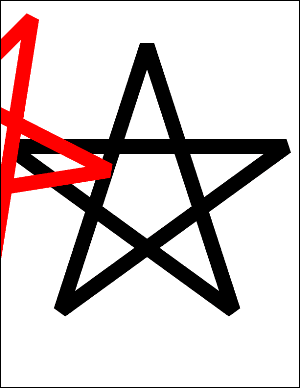
This example shows how to apply a 45 degree rotation to a
drawing of a star.
star = ""

star = star & "124 158 m " ' move

star = star & "300 700 l " ' line

star = star & "476 158 l " ' line

star = star & "15 493 l " ' line

star = star & "585 493 l " ' line

star = star & "h " ' close

star = star & "S " ' stroke

gr = ""

gr = gr & "q " ' save state

gr = gr & "30 w " ' line width

gr = gr & "2 j " ' line join

gr = gr & star ' add star

gr = gr & "1 0 0 RG " ' set color red

gr = gr & "0.7 0.7 -0.7 0.7 0 0 cm " ' rotate 45 degrees

gr = gr & star ' add star

gr = gr & "Q" ' restore state


Set theDoc = Server.CreateObject("ABCpdf14.Doc")

theDoc.SetInfo theDoc.FrameRect(), "stream", gr

theDoc.Save "c:\mypdfs\adv_star_rotate.pdf"
adv_star_rotate.pdf
|
|
|
|

